

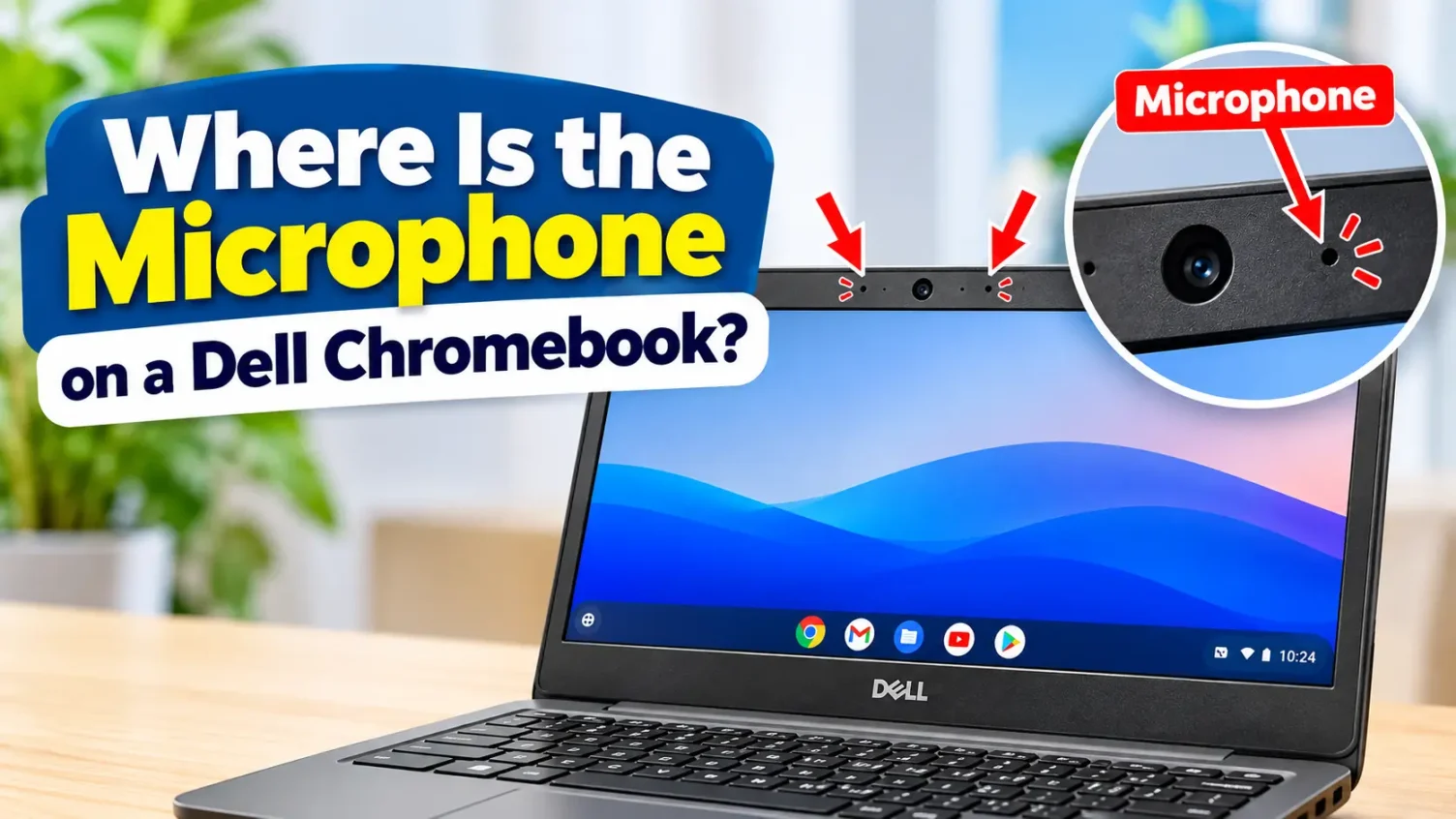
If you are trying to find where is the mic on a Dell Chromebook, the internal microphone is located at the top display bezel immediately adjacent to the front-facing webcam. On standard clamshell and 2-in-1 convertible configurations, it presents as a tiny circular pinhole aperture roughly 1 mm in diameter (Dell Technologies, 2019). Most modern models feature a dual-array Dell chromebook microphone system flanking both sides of the camera lens to capture directional voice input while filtering ambient background noise (Google, 2024).
Microphone Pinhole vs. Sensors and LEDs
When inspecting the top bezel of your display, you will typically see up to three separate small apertures surrounding the camera lens. Mistaking an ambient sensor or an indicator light for the microphone is a frequent reason users apply improper cleaning methods or misdiagnose hardware faults.
- The Microphone Pinhole: A miniature circular opening (approximately 1 mm wide) recessed slightly into the casing. On dual-array models, you will find one on either side of the camera lens, often backed by an internal acoustic mesh to reduce wind and key-click noise.
- The Camera Indicator LED: A small opening covered by a translucent glass or plastic diffuser that illuminates white or green when the camera sensor is actively powered.
- The Ambient Light Sensor (ALS): A slightly wider, dark sensor aperture designed to gauge room brightness to modulate keyboard backlighting and display panel luminance. It does not record audio.
Dell Chromebook Model-by-Model Mic Guide
Because Dell manufactures Chromebooks across education-focused lines (Inspiron, Chromebook 11, 3100 series) and commercial enterprise lines (Latitude Enterprise), physical mic placement varies by chassis architecture.
| Dell Model Family | Mic Configuration | Exact Chassis Location | Primary Identification Marker |
| Dell Chromebook 3100 / 3100 2-in-1 | Single or Dual Digital Array | Top bezel, flanking front camera | One or two pinholes integrated directly on the camera module (Dell Technologies, 2019) |
| Dell Chromebook 3110 / 3120 | Dual Array with Acoustic Mesh | Top bezel, centered above webcam | Dual mic holes backed by visible acoustic dust mesh protection |
| Dell Chromebook 11 (3180 / 3189) | Single Digital Pinhole | Top bezel, left side of webcam | Single small aperture located adjacent to the integrated camera assembly (Dell Technologies, 2017) |
| Dell Latitude 5400 / 5430 / 7410 ChromeOS | Noise-Canceling Dual Digital Mic | Top bezel / Top display lip | Integrated stereo pinholes paired with active background noise-suppression processing |
Where Is the Microphone Located on a Chromebook vs. Other Laptops?
Where is the microphone located on a Chromebook from other brands?
Understanding where is the microphone located on a Chromebook across manufacturers reveals standard industry placement: Acer, HP, Lenovo, and ASUS universally place the primary digital microphone pinhole along the upper screen bezel near the webcam (Google, 2024). On certain ruggedized 360-degree convertibles, a secondary world-facing microphone is embedded near the top row of the keyboard deck to record audio when flipped into tablet mode.
Where is the microphone on a Dell laptop running Windows?
If you are checking Windows models to determine where is the microphone on a Dell laptop (such as an XPS, Inspiron, or standard Latitude), the dual digital microphone array is similarly positioned on the top display bezel or cut into the top edge lip of the chassis (Dell Technologies, 2023). However, Windows laptops manage mic input via proprietary audio suites such as Waves MaxxAudio Pro, whereas a Dell Chromebook microphone relies entirely on the integrated ChromeOS Audio Server (CRAS) subsystem (The Chromium Projects, n.d.).
How to Test Your Microphone via the ChromeOS Diagnostics App
Rather than relying on third-party recording sites or guessing whether an input slider is moving, verify your Dell Chromebook microphone using the native system diagnostics utility (Google, 2024):
- Press the Everything Button (Search/Launcher key) or open the ChromeOS App Launcher.
- Type Diagnostics into the search bar and launch the Diagnostics utility.
- Select Audio from the left-hand navigation menu.
- Locate the Internal Mic section and select Run Test.
- Speak normally during the 5-second recording countdown, then listen to the automated playback.
If you hear your voice clearly during playback, your internal microphone hardware and operating system drivers are operating normally. If the audio is silent or distorted, proceed to hardware and permission troubleshooting.
Troubleshooting Dell Chromebook Microphone Issues
1. Fix the 2-in-1 “Tablet Mode” Mute Bug
On Dell Chromebook convertible models (such as the 3100 2-in-1 or 3189), folding the 360-degree hinge past 180 degrees transitions ChromeOS into Tablet Mode. In certain build updates, this orientation shift inadvertently triggers an internal audio mute state or attempts to route audio to a non-existent rear sensor.
- Rotate the laptop back into standard clamshell laptop mode.
- Click the Quick Settings panel (bottom-right system clock area).
- Click the arrow next to the Volume slider, select Input, and manually re-select Internal Microphone if the system set it to an inactive state.
2. Perform a ChromeOS Hardware Reset (EC Reset)
If the internal mic does not appear under available input devices, the Embedded Controller (EC) managing hardware communication may require a restart (Dell Technologies, 2021). A hardware reset restores communication between the motherboard and audio hardware without deleting local files:
- Turn off the Dell Chromebook completely.
- Press and hold the Refresh key (typically the fourth key from the top-left, marked with a circular arrow icon).
- While holding Refresh, tap the Power button once.
- Release the Refresh key once the Chromebook starts booting up.
3. Verify Chrome Web Permissions
If your microphone passes the ChromeOS Diagnostics test but fails in Google Meet, Zoom, or online testing portals:
- Navigate to chrome://settings/content/microphone in the address bar.
- Confirm that “Sites can ask to use your microphone” is toggled on.
- Review the “Not allowed to use your microphone” list and ensure your meeting portal has not been blocked by an accidental click.
Frequently Asked Questions
On virtually every Dell Chromebook model released within the last decade, the primary internal microphone is positioned on the upper bezel directly next to the webcam (Dell Technologies, 2019). If your device has an aftermarket privacy shutter or protective rugged bumper obscuring that area, check along the top outer edge or the side chassis above the keyboard deck for an unobstructed pinhole.
ChromeOS manages microphone inputs via software controls. Click the Quick Settings tray in the bottom right corner (beside the clock), select the arrow next to the Volume slider to access Audio Input, and ensure the microphone volume slider is raised and the mute toggle is turned off.
Dell Chromebooks utilize wide-pickup beamforming mics calibrated for classroom and office use. To reduce noise, open the Quick Settings shelf in the bottom right, select Audio Settings, and enable Noise Cancellation if your ChromeOS version supports it, or use a dedicated USB/headset microphone.

It started with a simple curiosity, understanding how technology works and why every new innovation changes the way we live. That curiosity eventually turned into a passion for writing about technology. Today, I explore AI, gadgets, software, apps, and emerging trends, breaking complex topics into simple, practical insights for TechBytey readers.
All posts by Kyler Li →