
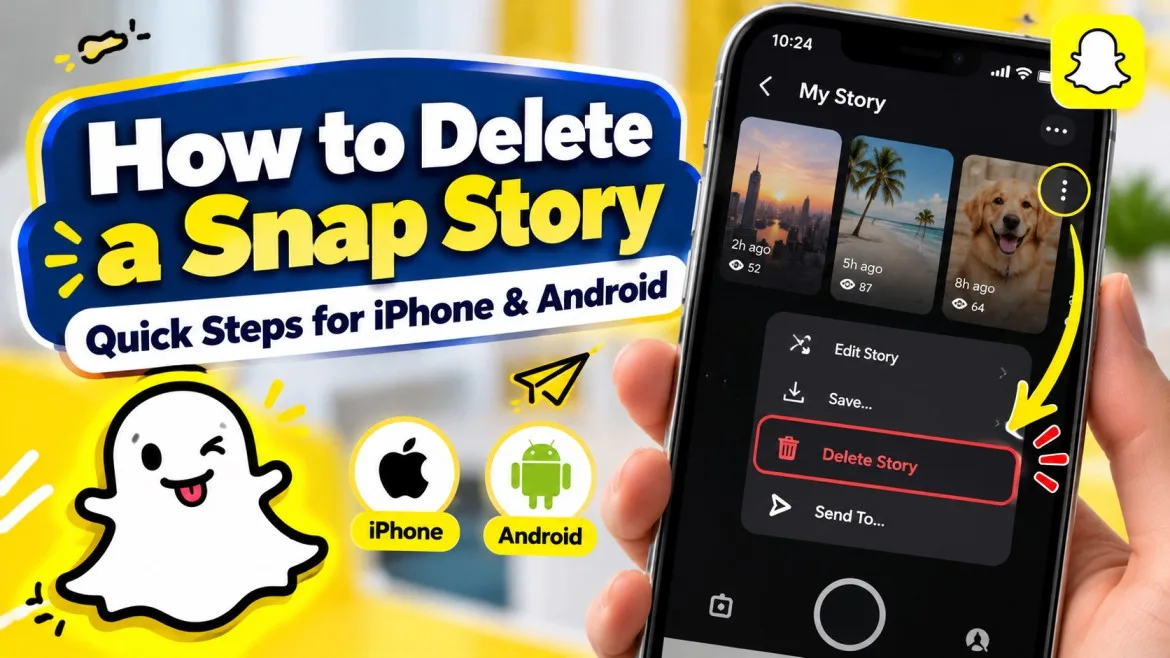
Whether you posted an accidental photo, shared an update with the wrong audience, or experienced immediate poster’s remorse, learning how to delete a snapchat story quickly prevents unwanted views across your network. Snapchat automatically wipes stories after 24 hours, but you do not have to wait for the expiration timer to pull content down.
Below is the complete, step-by-step walkthrough on how do i delete snap story updates across personal feeds, collaborative stories, spotlight submissions, and desktop browsers.
How to Delete a Snapchat Story (Step-by-Step Guide)
If you are urgently wondering “how do i delete a snapchat story without removing all my other posts,” Snapchat allows you to target and remove individual media clips without resetting your entire daily timeline (Snap Inc., n.d.-a).
- Launch the Snapchat app on iOS or Android and tap your Bitmoji profile icon in the top-left corner.
- Under the Stories section, tap My Story to expand your active sequence.
- Navigate to the specific photo or video you want to remove.
- Tap the three vertical dots (⋮) in the top-right corner of the playback screen (or swipe up directly on the Snap) (Snap Inc., n.d.-b).
- Tap Delete Snap (the trash can icon) and select Delete on the pop-up modal to confirm.
Once confirmed, the clip is removed immediately from your public feed, while your remaining sequence continues playing normally (Snap Inc., n.d.-a).
How Do I Delete Stories on Snapchat in Bulk?
A frequent user inquiry is “how do i delete stories on snapchat all at once?” Currently, Snapchat does not feature a universal “Delete All” button for your active feed (Snap Inc., n.d.-a). To remove your entire broadcast, you must purge each entry sequentially using your account profile tray (Snap Inc., n.d.-a):
- Tap your Bitmoji in the top-left corner to access your profile screen.
- Scroll to My Story and view the stacked list of individual Snaps.
- Tap the thumbnail of the first Snap, or press and hold the specific entry in your story queue (Snap Inc., n.d.-a).
- Tap the three vertical dots (⋮) > select Delete Snap.
- Confirm by tapping Delete.
- Repeat this sequence down the queue until your active story feed is completely empty (Snap Inc., n.d.-a).
Deleting Snaps from Private & Shared Stories
Managing posts in specialized story formats requires knowing your access level:
1. Private Stories (Padlock Icon)
If you created a Private Story for close friends:
- Tap your Bitmoji to view your profile.
- Locate your custom Private Story title (marked with a lock icon).
- Tap to open the Snap, hit the three vertical dots (⋮), and tap Delete Snap.
- To remove the album completely: Tap the three dots next to the Private Story header on your profile page, choose Delete Story, and confirm your choice.
2. Shared Stories (Collaborative)
Shared Stories allow multiple users to contribute media to a unified feed. Deleting depends on who originally posted the file:
- Your Own Contribution: Open the Shared Story, navigate to the specific clip or image you contributed, tap the three dots (⋮), and tap Delete Snap. Contributors always retain deletion rights over their own media.
- Another Contributor’s Post: If you are a participant, you cannot delete another member’s Snap. However, if you are the original Creator/Admin of the Shared Story, you can remove individual Snaps from any participant or delete the entire Shared Story container from your profile settings (Snap Inc., n.d.-b).
How to Remove Snaps from Snap Map & Spotlight
Public posts shared to Spotlight or the Snap Map live outside personal story carousels and index into global feeds. If you submitted content publicly and need it removed from discovery algorithms (Snap Inc., n.d.-c):
- Tap your Bitmoji avatar to open your public/personal profile.
- Scroll down past your friends list to the Spotlight & Snap Map management tray.
- Tap on the specific video or photo you submitted to public distribution.
- Tap the three vertical dots (⋮) at the top or bottom corner of the playback interface (or press and hold the thumbnail directly).
- Tap Delete Snap from the options menu.
- Confirm your choice. Snapchat’s server will immediately unindex the clip from public recommendation feeds and geographical map tags (Snap Inc., n.d.-c).
How to Delete Stories Saved to Memories or Camera Roll
Deleting a live Story removes it from your active 24-hour broadcast, but it may still exist in your local archive if auto-save is enabled.
Deleting from Snapchat Memories
- From the main camera viewfinder, swipe up or tap the overlapping cards icon beneath the shutter button.
- Under the Snaps or Stories tab, locate the saved media item.
- Long-press on the thumbnail to reveal the selection toolbar.
- Tap Delete (trash can icon) in the bottom menu bar.
- Confirm Delete Snap to remove it permanently from cloud storage.
Moving Media to “My Eyes Only” (Alternative to Permanent Deletion)
If you want to pull an image off your public story and hide it from personal galleries without deleting it permanently:
- Swipe up to open Memories.
- Long-press the Snap you wish to protect.
- Tap More or the Lock icon in the action tray.
- Select Move to My Eyes Only.
- Enter your four-digit passcode. The Snap is encrypted, removed from general camera roll exports, and secured behind your pin.
Alternative: Change Story Privacy Settings Instead of Deleting
If your concern is simply who sees the post, you can restrict visibility dynamically without deleting the Snap:
- Open Snapchat and tap your Bitmoji avatar.
- Tap the Gear icon (⚙️) in the top-right corner to open Settings.
- Scroll down to the Privacy Controls section and select View My Story.
- Choose between two restricted visibility modes:
- Friends Only: Prevents public subscribers or mutual acquaintances outside your accepted friends list from seeing past or present active stories.
- Custom: Allows you to manually check-box individual users to block them from viewing your current active story entirely, without unfriending or alerting them.
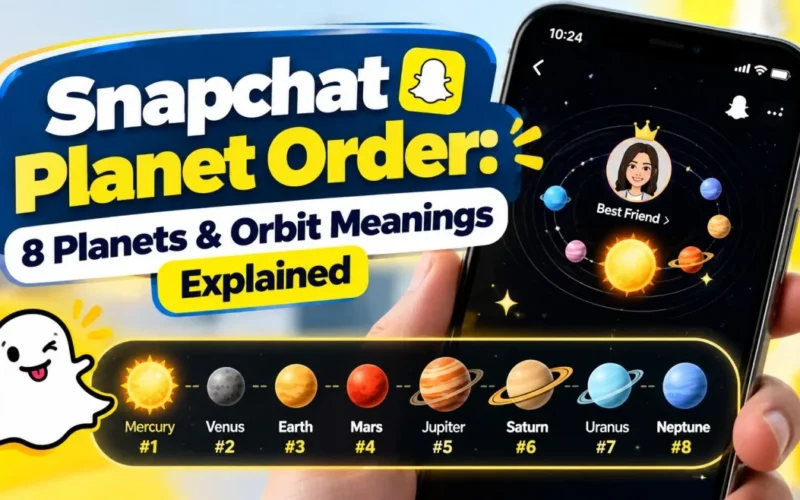
Beyond managing your Story privacy, you can explore other Snapchat features, including the Snapchat Planet Order, to understand how the app’s Friend Solar System ranks your closest friends.
Troubleshooting: Why Won’t My Snap Story Delete?
| Symptom / Error | Underlying Cause | Step-by-Step Resolution |
| Story still visible to friends after deletion | Local app caching or slow network latency on the viewer’s device (Snap Inc., n.d.-a). | The Snap is wiped from server queues immediately, but may briefly persist on outdated app caches (Snap Inc., n.d.-a). Advise the viewer to refresh their feed or clear their cache via Settings > Clear Data > Clear Cache (Snap Inc., n.d.-a). |
| “Delete Snap” option is grayed out or missing | Viewing another contributor’s post in a Shared Story, or network loss. | Verify ownership of the post. If verified, toggle Airplane mode on and off to re-establish a server connection. |
| Story disappeared before manual deletion | The standard 24-hour post lifecycle elapsed. | Check your Memories vault. The Snap expired naturally and was archived automatically if Auto-Save Story Snaps is turned on. |
| App freezes / throws an error during deletion | Corrupted local application data or outdated app build. | Force-close the application, check the App Store or Google Play for updates, restart your mobile device, and retry. |
Frequently Asked Questions
No, Snapchat never sends push notifications or activity alerts when you delete a post. However, anyone who viewed your story before you took it down will remain logged in your view history. If an active user taps an expired or deleted link, the player simply skips to the next available story without an error notification.
Yes. Open your story carousel, scrub or tap through until you reach the exact photo or video you want to remove, tap the three dots (⋮) icon, and choose Delete Snap (Snap Inc., n.d.-a). Only that targeted clip will be deleted; all prior and subsequent Snaps in your timeline remain active.
You can only delete your own submissions inside a Shared Story. If another friend added the media, the delete prompt will not appear unless you are the original creator and administrative owner of that Shared Story container (Snap Inc., n.d.-b).
If you are wondering “how do you delete a story from snapchat on a computer,” you can manage active posts through your browser (Snap Inc., n.d.-d):
1. Navigate to profile.snapchat.com and sign in with your account credentials.
2. Click on “My Posts” in the navigation portal (Snap Inc., n.d.-d).
3. Select the Snap you wish to discard under My Story or Spotlight Snaps (Snap Inc., n.d.-d).
4. Click Delete and confirm Delete on the prompt (Snap Inc., n.d.-d).
(Note: Browser-based deletion is currently restricted to personal accounts and is unavailable for Public Profiles) (Snap Inc., n.d.-d).
No. Active stories, Memories, and My Eyes Only operate on distinct storage silos. Deleting an active story only removes it from your live broadcast feed. If your account is configured to auto-save story Snaps, you must manually swipe up into Memories and delete the entry a second time to remove it permanently from cloud storage.

It started with a simple curiosity, understanding how technology works and why every new innovation changes the way we live. That curiosity eventually turned into a passion for writing about technology. Today, I explore AI, gadgets, software, apps, and emerging trends, breaking complex topics into simple, practical insights for TechBytey readers.
All posts by Kyler Li →